Item slots
If a control toggles an item that completely replaces the item of another control, you may want to switch the other controls off.
- Those controls belong to the same Item slot.
- Example: A crop-top and a sweater shouldn't be worn at the same time.
- Example: A bra and a bikini shouldn't be worn at the same time.
In this documentation page, we will use two similar terms to describe distinct concepts:
- A control is Switched ON when the user toggles the item on the Menu ON.
- A control is Active when the control is simultaneously Switched ON and additional conditions of the control are satisfied.
When a control is Active, the effects of that control will be visible: Objects will be toggled, properties will change, etc.
It is possible for the user to Switch ON a control without causing any effect to be visible if the additional conditions are not satisfied. Therefore, a control can be Switched ON and still remain Inactive.
What are Item slots?
The simplest form of cross-control effect is an item slot.
- Only one control can be active with that item slot.
- When a control of that item slot becomes active, all the other items in that slot will be switched OFF.
- One of the items of that slot can be set to be Default. If none of the items in that slot is active, then this slot will be switched ON.
- A control can belong to multiple item slots.
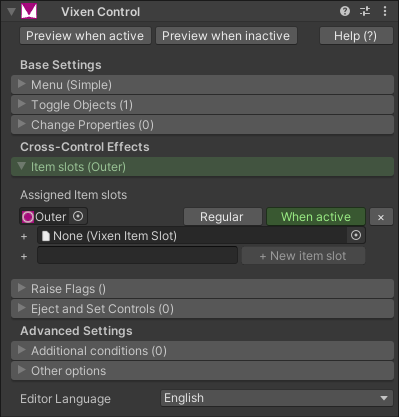
Pictured above: This control is part of the Outer item slot. Whenever this control becomes active, all other items in the Outer item slot will be switched OFF.
When to use it?
An item slot is best used for items of the same category that occupy the same space, where only one of those items may be visible at one time.
- Example: A crop-top and a sweater shouldn't be worn at the same time.
- Example: A bra and a bikini shouldn't be worn at the same time.
How to use
To use item slots, first we need to create an Item Slot, and then we need to assign it to the items that belong in this item slot.
- In one of your controls:
- In the Item Slot panel, type the name of the item slot next to the + New item slot button. Example of names: Hat, Glasses, OuterClothing, InnerClothing, Shoes, ...
- Press the + New item slot button to create a new Vixen Item Slot asset. This new asset will be highlighted in your project.
- In your other controls that belong in this item slot:
- In the Item Slot panel, select or drag and drop the previously created Vixen Item Slot asset into the field.
You can reuse the same Vixen Item Slot assets across different unrelated avatars.
Example: If you have hats for Karin and Manuka avatars, you can create one Hat item slot and use it for both of your avatars.
Options
If you want the item slot to always contain at least one item in it:
- In the control that you'd like to be default for that item slot:
- In the Item Slot panel, in the item slot, press the "Regular" button so that it becomes Default.